Talinn Ryalor
Minister of Justice, Duke of Westisle
Staff member
Nobility: Duke
Minister: Justice
 Fortuna Survivor
 Urk Expedition Service Badge
- Character Biography
- Click Here
How to Archive the Vulpine Imperium
What program do you recommend?
While there are many ways to do this on different operating systems, the program I recommend and use is HTTRack, which is free, open source, and works with both Windows and Linux for those concerned with privacy and cost. You are not restricted to this program, of course, but it is the one that I have found that works best for convenience, price, and time. You can download it here. If you use a Mac, I recommend SiteSucker, although it can cost you a small amount of money ($5 at the time of writing this guide) to use. This guide will not cover that in particular as the user is not using it, but, on a glance, it looks pretty simple and intuitive-that can be found on the Apple Store.
How do I prepare to archive the site?
First, download the program, and make sure, depending on your settings, to have between 300MB and around 6GB or so space on your hard drive for a VI archive. That sounds like a wide range, but it depends on how in-depth you want to go. Personally, I tend to go for smaller sizes these days as the cost vs benefits of a larger size rapidly declines exponentially, but I will leave the choice up to you.
Okay, I downloaded it and have the space needed, what do I do now?
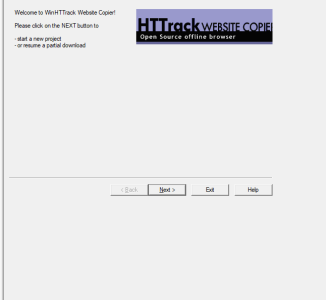
Open HTTRack, and select new project.
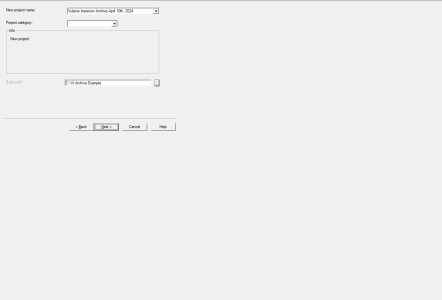
Name your preferred archive name, and pick a location for it to download.
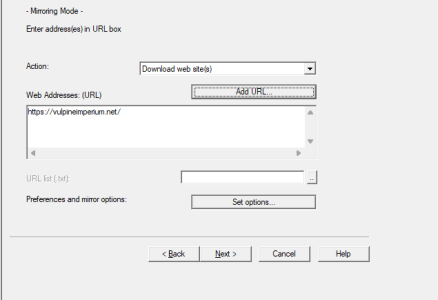
This will take you to the following page.
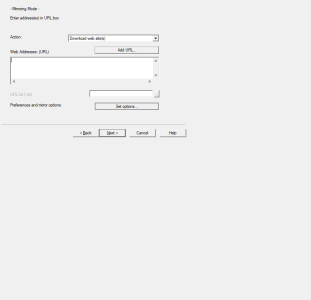
!!!!BEFORE YOU DO ANYTHING, MAKE SURE TO GO TO SET OPTIONS!!! I REPEAT, BEFORE YOU DO ANYTHING, MAKE SURE TO GO TO SET OPTIONS!!
Now that you have seen this warning, click set options. This window should appear.
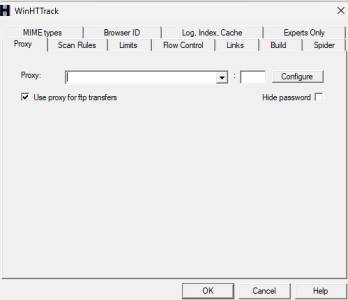
Use the following options for a balance of not stressing the site too much, storage, and getting a full picture of the site including images. I will, however, break down the options for you if you want to customize it more.
Limits Tab
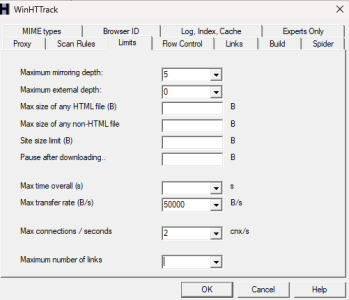
Maximum Mirroring Depth: I like to keep this at around five or so, it’s a bit confusing but it’s how many links it will follow flowing off from the homepage. So you would go to www.vulpineimperium.net, with a depth of 1. A depth of two would be https://vulpineimperium.net/forums/the-bilge-in-the-bucket.3/ would capture thread titles in the Bilge, but not the actual threads themselves. A depth of three would capture the individual threads and posts. For safety’s sake I like to leave a buffer of around two for what you would like to archive-five seems to have worked quite well so far in my tests.
Maximum External Depth: Leave this at zero, basically, it archives any external site links in much the same way as the above. The higher the depth, the more likely you are to try to download the entire internet.
Maximum Number of Files, Size: Leave these uncapped, I don’t really see any reason why you would cap this in 2026.
Maximum Total Site Size: Unless space and/or internet caps are truly a premium for you in 2026, leave this blank. Using the default recommended settings in this guide the VI, as of the time of writing, is around 600MB.
Pause After Downloading: Leave Blank.
Maximum Time Overall: Honestly, leave blank unless your computer has somewhere to be really soon.
Max Transfer Rate: The higher the number, the faster you can download the archive, but more stress is put on the server. During peak hours, please keep this lower, during off-peak hours, you can keep it higher, the setting I put is for more peak hours.
Max Connections/second: Same as the above, if during peak hours keep it lower, if no one is online, you can bump it up.
Maximum Number of Links: Just leave this blank.
Flow Control Tab
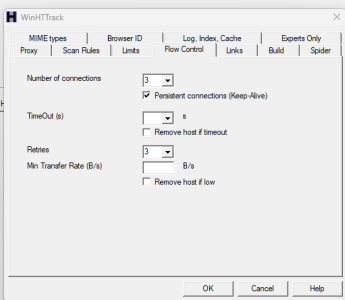
Number of Connections: Keep it at three or lower during peak hours, you can bump it up higher for a faster download during the middle of the night.
Keep Alive: No reason to uncheck this.
Timeout: Leave all settings as is.
Retries: Leave this as is.
Min Transfer Rate: Leave this as is.
Remove if host is low: Leave as is.
Spider Tab
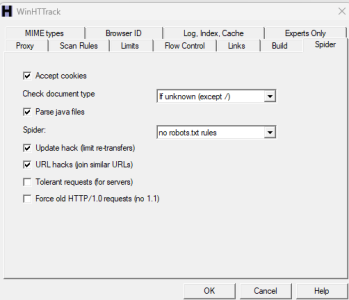
Accept Cookies: Keep this on for site functionality, there’s no security risk to you with an archive on the VI in particular.
Check Document Type: Just leave as is.
Parse Java Files: The VI really doesn’t use much Java, costs nothing to leave on.
Spider: I give you permission to ignore robots.txt, you’re downloading with my permission, this is more for those automatic site scrapers that have some morals.
Update Hack: Leave checked, useful if you archive multiple times.
URL Hacks: Leave checked, useful if you archive multiple times.
Tolerant Requests: Not relevant because the site doesn’t use a terrible server.
Force old HTTP: Not relevant because the site doesn’t use a terrible server.
Scan Rules
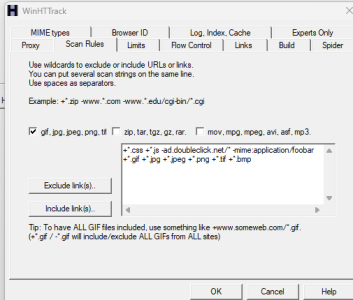
This tab basically tells you what files types you want to download, the tradeoff being the more file types you download, the bigger the site archive will be. I usually just archive images (left check box), but you can also download any updated compressed folders (middle check box), or if someone uploads videos or .mp3s (VI Radio Show for example), the right tab, but honestly that’s never been really used. You can also add custom file types via include links but those have never been used to my knowledge and likely never will be.
Browser ID
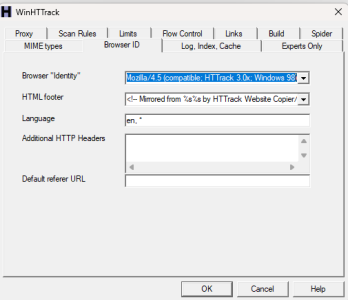
You can leave this as is, but if you get any weird errors on your browser, you simply enter a modern browser string here by clicking the field and changing it.
Chrome: Mozilla/5.0 (Windows NT 10.0; Win64; x64) AppleWebKit/537.36 (KHTML, like Gecko) Chrome/124.0.0.0 Safari/537.36
Firefox (Windows): Mozilla/5.0 (Windows NT 10.0; Win64; x64; rv:125.0) Gecko/20100101 Firefox/125.0
Microsoft Edge: Mozilla/5.0 (Windows NT 10.0; Win64; x64) AppleWebKit/537.36 (KHTML, like Gecko) Chrome/124.0.0.0 Safari/537.36 Edg/124.0.0.0
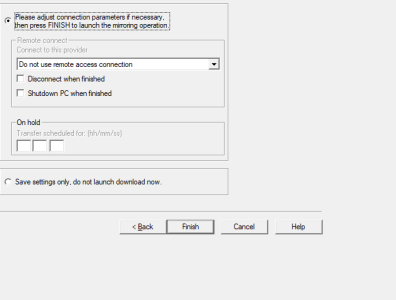
Now that all your options are set, you are ready to get started, see the next post.
What program do you recommend?
While there are many ways to do this on different operating systems, the program I recommend and use is HTTRack, which is free, open source, and works with both Windows and Linux for those concerned with privacy and cost. You are not restricted to this program, of course, but it is the one that I have found that works best for convenience, price, and time. You can download it here. If you use a Mac, I recommend SiteSucker, although it can cost you a small amount of money ($5 at the time of writing this guide) to use. This guide will not cover that in particular as the user is not using it, but, on a glance, it looks pretty simple and intuitive-that can be found on the Apple Store.
How do I prepare to archive the site?
First, download the program, and make sure, depending on your settings, to have between 300MB and around 6GB or so space on your hard drive for a VI archive. That sounds like a wide range, but it depends on how in-depth you want to go. Personally, I tend to go for smaller sizes these days as the cost vs benefits of a larger size rapidly declines exponentially, but I will leave the choice up to you.
Okay, I downloaded it and have the space needed, what do I do now?
Open HTTRack, and select new project.
Name your preferred archive name, and pick a location for it to download.
This will take you to the following page.
!!!!BEFORE YOU DO ANYTHING, MAKE SURE TO GO TO SET OPTIONS!!! I REPEAT, BEFORE YOU DO ANYTHING, MAKE SURE TO GO TO SET OPTIONS!!
Now that you have seen this warning, click set options. This window should appear.
Use the following options for a balance of not stressing the site too much, storage, and getting a full picture of the site including images. I will, however, break down the options for you if you want to customize it more.
Limits Tab
Maximum Mirroring Depth: I like to keep this at around five or so, it’s a bit confusing but it’s how many links it will follow flowing off from the homepage. So you would go to www.vulpineimperium.net, with a depth of 1. A depth of two would be https://vulpineimperium.net/forums/the-bilge-in-the-bucket.3/ would capture thread titles in the Bilge, but not the actual threads themselves. A depth of three would capture the individual threads and posts. For safety’s sake I like to leave a buffer of around two for what you would like to archive-five seems to have worked quite well so far in my tests.
Maximum External Depth: Leave this at zero, basically, it archives any external site links in much the same way as the above. The higher the depth, the more likely you are to try to download the entire internet.
Maximum Number of Files, Size: Leave these uncapped, I don’t really see any reason why you would cap this in 2026.
Maximum Total Site Size: Unless space and/or internet caps are truly a premium for you in 2026, leave this blank. Using the default recommended settings in this guide the VI, as of the time of writing, is around 600MB.
Pause After Downloading: Leave Blank.
Maximum Time Overall: Honestly, leave blank unless your computer has somewhere to be really soon.
Max Transfer Rate: The higher the number, the faster you can download the archive, but more stress is put on the server. During peak hours, please keep this lower, during off-peak hours, you can keep it higher, the setting I put is for more peak hours.
Max Connections/second: Same as the above, if during peak hours keep it lower, if no one is online, you can bump it up.
Maximum Number of Links: Just leave this blank.
Flow Control Tab
Number of Connections: Keep it at three or lower during peak hours, you can bump it up higher for a faster download during the middle of the night.
Keep Alive: No reason to uncheck this.
Timeout: Leave all settings as is.
Retries: Leave this as is.
Min Transfer Rate: Leave this as is.
Remove if host is low: Leave as is.
Spider Tab
Accept Cookies: Keep this on for site functionality, there’s no security risk to you with an archive on the VI in particular.
Check Document Type: Just leave as is.
Parse Java Files: The VI really doesn’t use much Java, costs nothing to leave on.
Spider: I give you permission to ignore robots.txt, you’re downloading with my permission, this is more for those automatic site scrapers that have some morals.
Update Hack: Leave checked, useful if you archive multiple times.
URL Hacks: Leave checked, useful if you archive multiple times.
Tolerant Requests: Not relevant because the site doesn’t use a terrible server.
Force old HTTP: Not relevant because the site doesn’t use a terrible server.
Scan Rules
This tab basically tells you what files types you want to download, the tradeoff being the more file types you download, the bigger the site archive will be. I usually just archive images (left check box), but you can also download any updated compressed folders (middle check box), or if someone uploads videos or .mp3s (VI Radio Show for example), the right tab, but honestly that’s never been really used. You can also add custom file types via include links but those have never been used to my knowledge and likely never will be.
Browser ID
You can leave this as is, but if you get any weird errors on your browser, you simply enter a modern browser string here by clicking the field and changing it.
Chrome: Mozilla/5.0 (Windows NT 10.0; Win64; x64) AppleWebKit/537.36 (KHTML, like Gecko) Chrome/124.0.0.0 Safari/537.36
Firefox (Windows): Mozilla/5.0 (Windows NT 10.0; Win64; x64; rv:125.0) Gecko/20100101 Firefox/125.0
Microsoft Edge: Mozilla/5.0 (Windows NT 10.0; Win64; x64) AppleWebKit/537.36 (KHTML, like Gecko) Chrome/124.0.0.0 Safari/537.36 Edg/124.0.0.0
Now that all your options are set, you are ready to get started, see the next post.
Last edited: